
Automatic WordPress plugin updates that roll back when something breaks
Updating early is the best defence against vulnerabilities, but a blind update can break the site. Here every update comes with a way back.
Putting the old files back isn't enough.
Many updates, especially for e-commerce and page builders, change the database too. The classic rollback restores only the plugin folder and leaves the site half done, with new tables and old code.
And if you update every site at the same moment, you find a faulty release on all your clients at once.
Backup, checks, update, verification.
Before
A check of the pages you chose and a restore point with the plugin folder and the tables it may change. With backup space in the plan, a recent full backup first.
During
The plugin is updated through WordPress's own updater, on the days and hours you chose, in your agency's time zone.
After
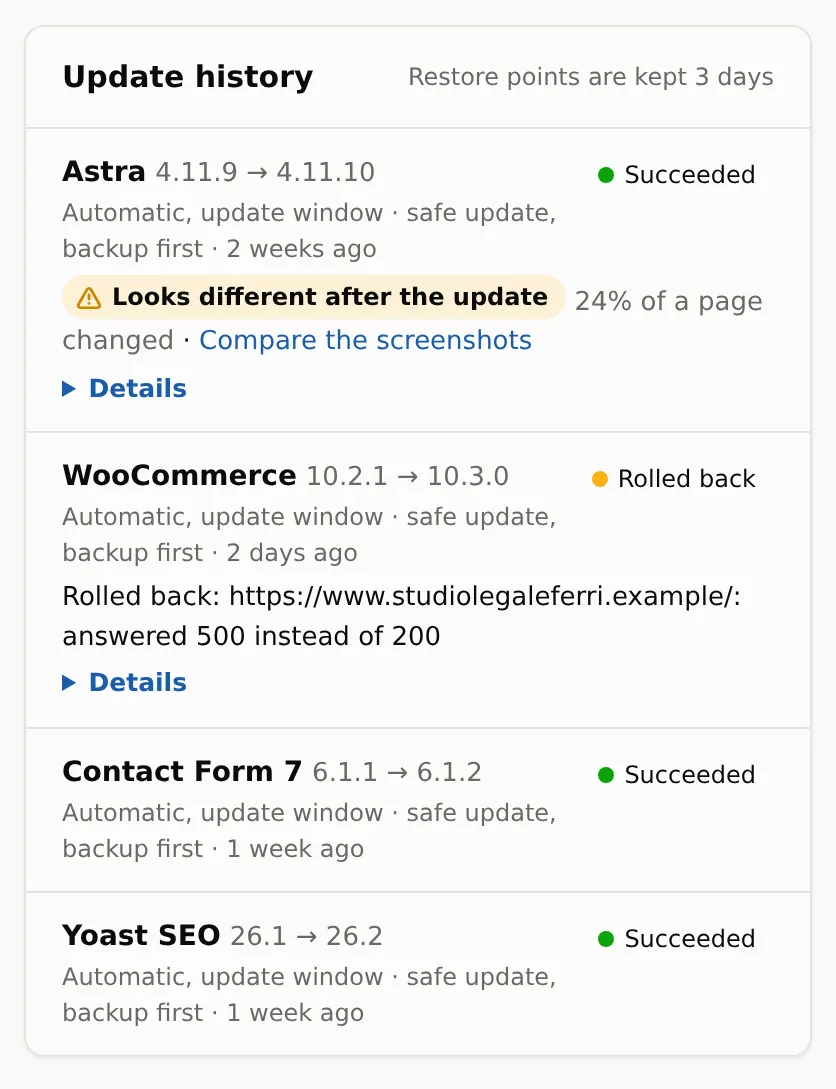
We empty the page caches and, after a WooCommerce or Elementor update, run the database update the plugin asks for. Then we check the pages and PHP errors again. If something broke, files and database go back to how they were and the pages are checked once more.
Want to try it on a real site? The 30-day trial needs no credit card.
Start free trialFrequently asked questions
What happens if an update breaks the site?
We apply the restore point: the plugin folder and saved tables come back, tables created by the update are removed and the pages are checked again. You get an alert with the reason.
Do visitors keep getting cached pages from before the update?
No. Right after the update the agent empties WP Rocket, LiteSpeed Cache, W3 Total Cache, WP Super Cache and the object cache, or the whole Joomla cache. Pages cached with the old version, which may point to scripts the update removed, go away at once.
Do I still have to start the database update of WooCommerce or Elementor by hand?
No. The agent runs it right after the plugin update, before the pages are checked. If it fails, the plugin and its tables go back to the previous version. One that takes more than 4 minutes goes on in the background: if the pages break meanwhile, you get an alert and roll back by hand once it is done.
Does it work for Joomla?
Yes, for Joomla 4.4 and later: extensions and the core, with the same restore point and checks. The upgrade to the next major version, from 4.4 to 5 and from 5.4 to 6, starts after Joomla's own pre-update checks and always with a full backup. You confirm each active extension whose developer publishes no compatibility information.
Can SitePing enter the licence keys of premium extensions?
For Joomla extensions that ask for a download key, and for YOOtheme Pro, Essentials for YOOtheme Pro (the ZOOlanders Download ID) and Booster Elite on WordPress, yes. You enter the key once in the settings and every site with the extension gets it. For Booster you also see whether booster.io accepts the key. A key the client bought stays on its site until you replace it there. Other WordPress plugins activate their licence in their own settings page, and we leave them alone.
Can I install a premium plugin or my own module from a zip?
Yes. Upload the zip to your library: we check its structure, read its manifest and compare every file with the malware signatures of the agent before keeping it. Then install it on one site or on many, on WordPress, Joomla 3 to 6 and PrestaShop, with a restore point, the pages checked before and after and a rollback if they get worse. Where the extension is already there, the zip replaces it as an update. Drupal is left out: most Drupal sites add modules with Composer, which would overwrite a module copied from a zip.
Do I need backup space?
No. Every update from the dashboard makes the restore point and rolls back on its own. Backup space adds the safe update, with a full backup kept off the server before the restore point.
Does SitePing take screenshots before and after an update?
On Complete, yes. Our browser opens the home page and the pages you chose as a new visitor, on a computer screen and at phone width, twice a few seconds apart, so sliders and videos do not count as a change. It takes the pictures again after the update. A page that changed more than your limit opens an alert with both pictures. A Cloudflare or firewall check page is never compared. If our browser does not answer within 5 minutes, the update goes ahead with the other checks and the history says so.
Can I choose what updates automatically?
Yes. For each site choose manual updates, only releases that fix vulnerabilities, or everything after the 48 hours.
Can I choose when updates run?
Yes. Pick the weekdays and hours, for example Monday to Thursday from 22:00 to 04:00, in your agency's time zone. You can use the same window for every site of a client or a group, or set it once in an update rule.
Can I block an update?
Yes. Skip one version, which comes back when the next one is out, or hold every version until you let it go. A held update never starts on its own and leaves the count of available updates. If it fixes a vulnerability it stays in view as a risk.
Goes well with
- Encrypted WordPress and Joomla backups, straight from your client's serverEncrypted on the site before they leave, and locked against deletion.
- Vulnerability checks for plugins, themes and extensionsInstalled versions matched against Wordfence Intelligence for WordPress, and the Joomla Security Centre and the NVD for Joomla.
- PHP fatal error and warning monitoring for WordPress and JoomlaFile, line and message of every fatal error, as it happens. Warnings and notices in the dashboard.
- Incremental backups that restore like a full backupOnly changed files are sent, and restoring takes one pass.
Try it on your clients' sites.
Connect your first sites today and see what SitePing finds on them.
- Every Complete feature except backups
- Up to 10 sites and 50 AI credits a month
- No credit card needed to start
- At the end you choose a plan or move to Free, and nothing is charged
Already have an account? Log in. Prefer to look at one site first? Free read-only audit.